A QR code is the fastest way to get people into a Google Form: no typing a long link, no emailing it around. Scan, fill in, done. This guide shows you how to create a free QR code for any Google Form, how to combine the form with other links, and how to print it so it scans reliably at events, in classrooms or at your counter.
Why use a QR code for a Google Form?
- Instant access: people open the form in a couple of seconds, right when they are motivated to answer.
- No typing errors: long form links are nearly impossible to type correctly.
- Great for physical places: posters, slides, table tents, receipts, name badges and packaging.
- Contactless: no clipboards, pens or paper forms to collect and type up.
Step 1: Copy your Google Form link
- Open your form in Google Forms and click Send (top right).
- Click the link icon (🔗).
- Tick Shorten URL. You'll get a short link like
https://forms.gle/AbC123xYz. - Click Copy.
Why shorten? A shorter link produces a simpler QR code with bigger squares, which scans more easily, especially when printed small.
Before you share: under the form's Settings → Responses, check whether "Restrict to users in your organization" or "Require sign-in" is switched on. If it is, people outside your organization or without a Google account won't be able to answer.
Step 2: Create the QR code
- Open the free QR code generator.
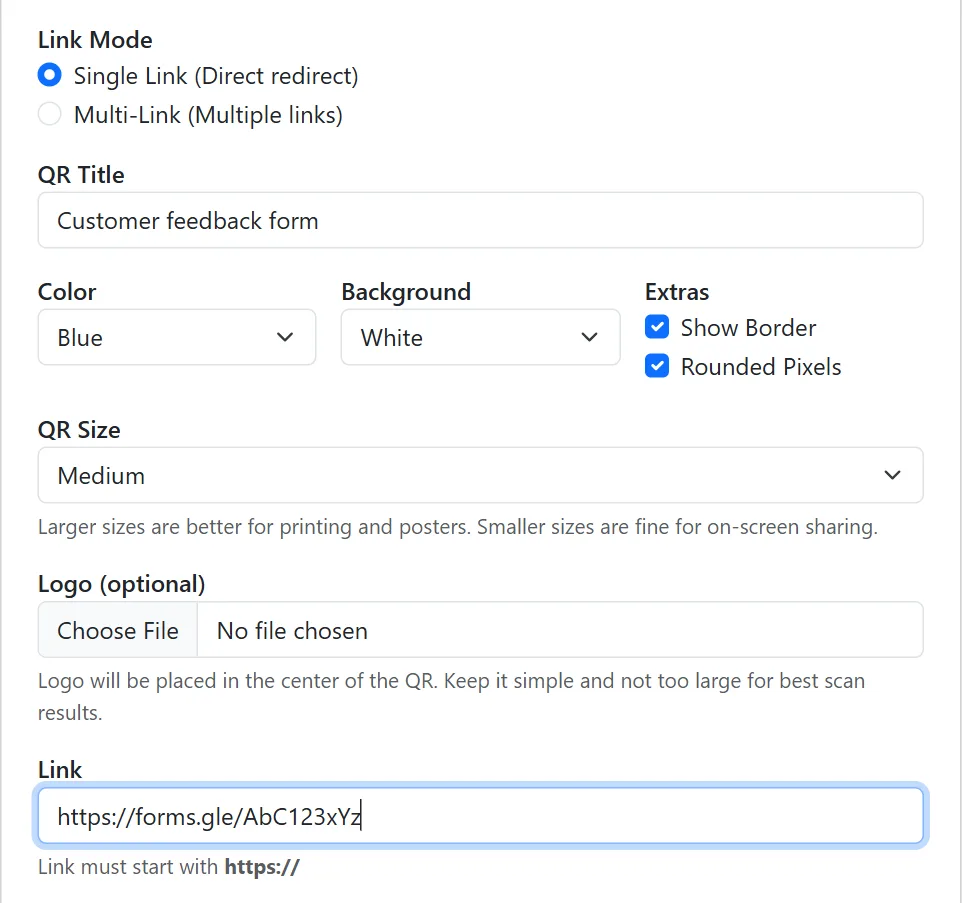
- Select Single Link (Direct redirect). The scan then opens your form directly.
- Give it a title, for example "Customer feedback form". This is also used as the file name when you download.
- Paste your form link into the Link field.
Step 3: Choose colors, size and logo
- Color: pick from 24 preset colors. Darker colors (black, dark gray, blue, green, purple) scan best on a white background.
- Background: white or light gray.
- Extras: a border helps the code stand out on busy designs; rounded pixels give a softer look.
- Size: Large (print) for anything printed, Medium for slides and screens.
- Logo: optional. Your school, company or event logo is placed in the center.
Step 4: Generate, test and download
- Click Generate QR Code.
- Scan it with your phone and submit a test response. Then delete the test response in the form's Responses tab.
- Download PNG for most uses (includes the logo) or SVG for large professional prints.
One QR code for your form and other links
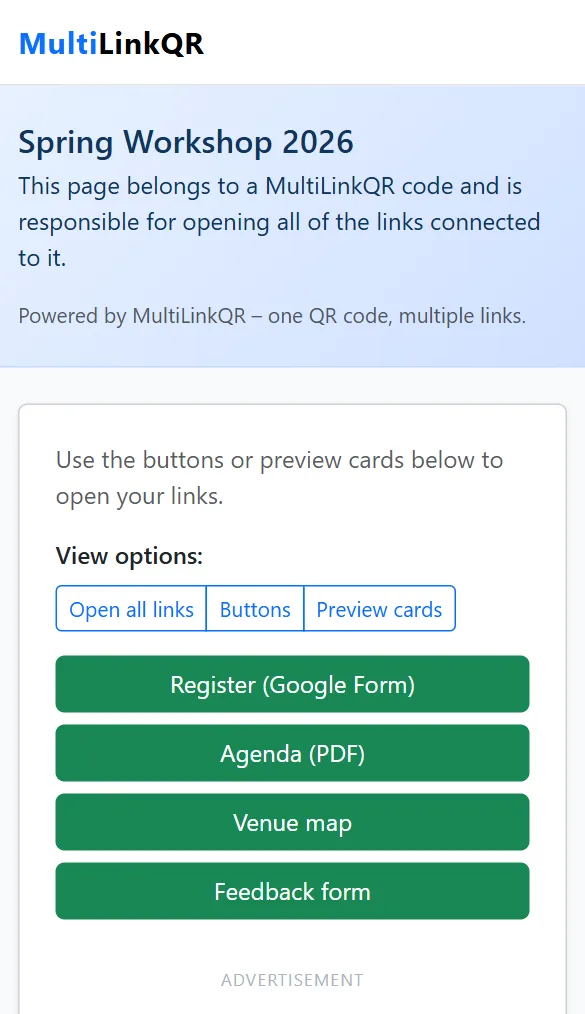
Often people need more than the form: the event agenda, the venue location, a second form for feedback afterwards. Instead of several QR codes, use Multi-Link mode and add each link with a label. People see a small page with one button per link.
Popular combinations:
- Events: registration form + agenda PDF + venue map + feedback form.
- Classrooms: quiz form + slides + homework submission form.
- Shops and restaurants: feedback form + Google review page + Instagram.
- Recruiting stands: application form + careers page + LinkedIn.
Step-by-step screenshots for Multi-Link mode are in our guide on putting multiple links in one QR code.
Where Google Form QR codes work well
- Event registration and check-in: at the entrance, on the invitation or on screen during the welcome.
- Customer feedback: on receipts, table tents, packaging and at the checkout.
- Classrooms: projected on the board for quizzes, attendance or anonymous lesson feedback.
- Workplaces: in break rooms for surveys, suggestions or training evaluations.
- RSVPs: on wedding and party invitations.
Comparing locations: which poster gets more responses?
Google Forms doesn't show where respondents came from. A simple workaround is a hidden "source" answer using a pre-filled link:
- Add a short-answer question such as "Where did you find this form?"
- In the form's ⋮ menu choose Get pre-filled link, type "poster-entrance" as the answer and copy the link.
- Repeat with "poster-cafeteria", "flyer" and so on, and create one QR code per link.
Each response now shows which QR code it came from. You can see the totals in the Responses tab or in the linked Google Sheet.
Printing tips
- Size: at least 2.5 cm (1 inch) on small cards, 4 cm (1.5 inches) on flyers, and larger on posters meant to be scanned from a distance.
- Contrast: dark code on a light background. Never light-on-light.
- Finish: matte paper avoids glare from lights.
- Call to action: write what happens, for example "Scan to register (1 minute)".
- Placement: at eye level, flat (not on a curved bottle), and where people can stand still for a moment.
Common mistakes to avoid
- Sharing the edit link instead of the "Send" link. Respondents should never land in the form editor.
- Leaving sign-in restrictions on when the audience is the public.
- Not testing on a phone. Long forms with many sections can be tiring on small screens, so keep it short.
- Printing too small or in a light color.
Quick checklist
- ✅ Form tested and sharing settings checked
- ✅ Short
forms.glelink copied - ✅ QR code generated on MultiLinkQR
- ✅ Test scan and test response done
- ✅ PNG or SVG downloaded
- ✅ Clear call to action next to the code
- ✅ Printed at the right size, on matte paper
Create your Google Form QR code
Paste your form link and download a print-ready QR code in under two minutes. Free forever, no account required.
Generate QR Code Free Read More Guides