A professional QR code does two things: it scans instantly on any phone, and it looks like it belongs to your brand. Most QR codes that fail do so for simple, avoidable reasons, such as too little contrast, too small a print, no empty border or no explanation. This guide covers the design, size, file format and testing rules that make a QR code look professional and work every time.
1. Start with the right content
- One destination? Use a single-link code. It opens the page directly.
- Several? Use a multi-link QR code so people can choose. Keep it to the links people really need.
- Use clean, short links. Remove long tracking parts copied from apps. Shorter links make a simpler pattern that scans more easily.
- Only link to mobile-friendly pages. Everyone who scans is on a phone.
2. Choose colors that scan
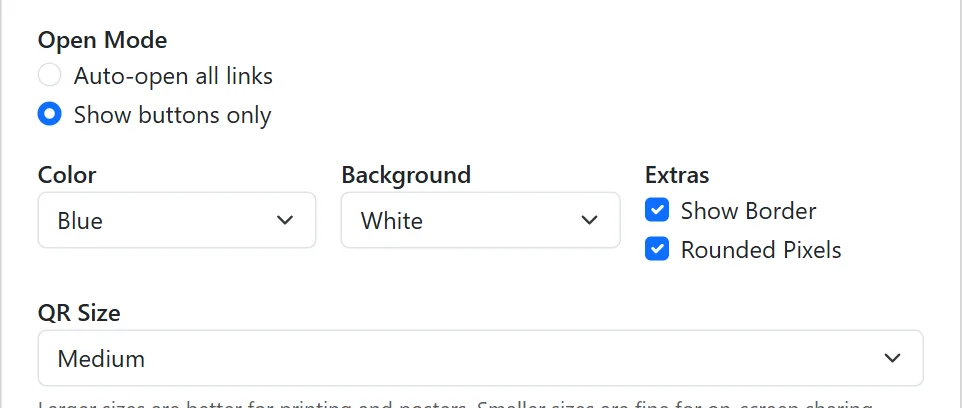
QR scanners need clear contrast between the dark squares and the background.
- Dark code on a light background works best: black, navy, dark green, dark purple or deep red on white.
- Avoid light codes (yellow, light gray, pastel) and inverted codes (light on dark), which some older scanners struggle with.
- Brand colors are fine if they are dark enough. Test in the lighting where the code will be used.
3. Add your logo the right way
- A small logo in the center makes the code look official and tells people who it belongs to.
- Use a simple, high-contrast logo (a symbol or monogram rather than a detailed image).
- The MultiLinkQR generator places the logo in the center at a scan-safe size. Always scan-test after adding one.
- Note: the PNG download includes the logo; the SVG file doesn't.
4. Leave a quiet zone
Scanners need an empty margin around the code to find it. The downloaded file includes a white margin; when placing the code in your design, keep extra empty space around it, don't let text, borders or images touch it, and don't crop the white edge.
5. Print at the right size
A reliable rule: the code should be about one tenth of the scanning distance.
- Business cards and labels: at least 2–2.5 cm (about 1 inch).
- Flyers and menus: 3–4 cm (about 1.5 inches).
- Posters: 6–10 cm or more, depending on distance.
- Signs and banners: 20 cm or more.
Multi-link codes with many links are denser, so go one size up.
6. Pick the right file format
- SVG: a vector file that stays perfectly sharp at any size. Best for print shops, signs and large posters.
- PNG (Large size): best for documents, home or office printing, and when you want your logo included.
- Never use a screenshot or a heavily compressed image. Blurry edges cause scan failures.
7. Add a call to action
A bare QR code gets fewer scans. Tell people what they'll get: "Scan for our menu", "Scan to book a table", "Scan for all our links". Short and specific works best.
8. Test before you print
- Scan the code on screen with at least two different phones (for example an iPhone and an Android).
- Tap every link and check it opens the right page.
- Print one proof at the final size and scan that too, in the real lighting.
- Only then print the full batch.
Professional QR code checklist
- ✅ Correct, short, mobile-friendly links
- ✅ Dark code on a light background
- ✅ Small, simple logo (optional), scan-tested
- ✅ Empty margin around the code
- ✅ Printed at about one tenth of the scanning distance
- ✅ SVG for professional print, PNG for documents
- ✅ Clear call to action next to the code
- ✅ Tested on two phones and on a printed proof
Ready? Create your QR code. It's free and needs no account.
Create your professional QR code
Choose colors, add your logo and download PNG or SVG. Free, no account needed.
Generate QR Code Free Read More Guides