A QR code turns a poster or flyer from something people glance at into something they can act on: register, buy tickets, follow, order or get directions. But a badly placed or too-small code is simply ignored. This guide covers what to link, how big to print, where to place the code and the mistakes that stop people from scanning.
What should the QR code on a flyer open?
Decide on the one main action you want, then add a few supporting links only if they help:
- Events: tickets or registration first, then the agenda, venue map and Instagram.
- Shops and restaurants: the offer or menu first, then ordering, WhatsApp and reviews.
- Services: a booking or contact page first, then prices and examples of your work.
- Job ads: the application form first, then the job description and company page.
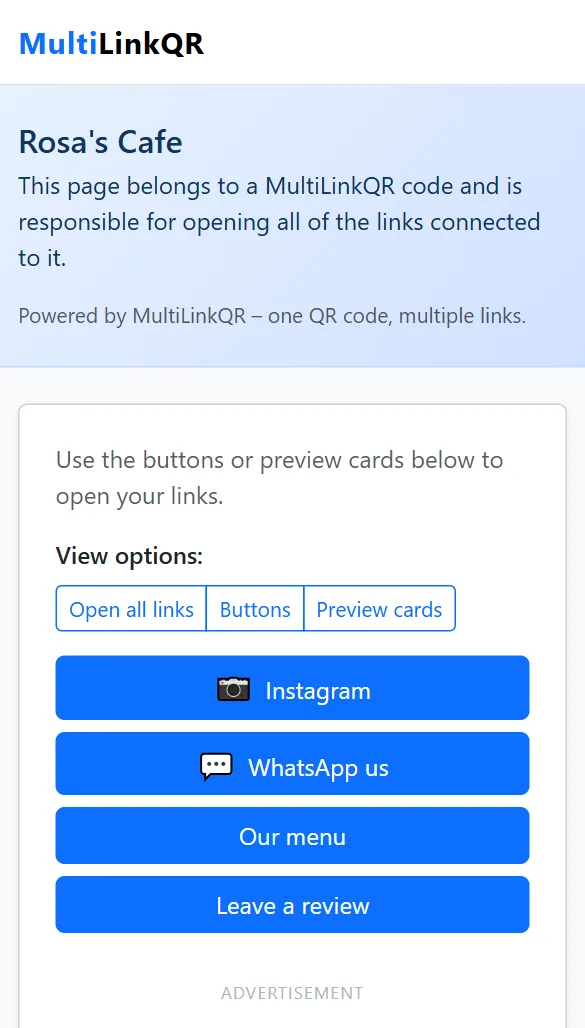
One destination? Use a single-link code. Several? A multi-link QR code shows them as buttons, so one code does everything. Not sure? Read single-link vs multi-link QR codes.
How big should the QR code be?
A reliable rule of thumb: the code should be about one tenth of the scanning distance. If people will stand 1 meter away, print it about 10 cm wide. If they stand 3 meters away, about 30 cm.
- Handheld flyer (A5/A6): at least 3–4 cm (about 1.5 inches).
- A4/Letter poster on a wall: 6–10 cm, depending on distance.
- Large poster or banner seen from across a room: 20 cm or more.
Codes with many links have a denser pattern, so go one size larger for multi-link codes with more than four or five links. In the generator, choose Large (print) or download the SVG file, which stays sharp at any size.
Where to place it
- At eye level on posters, not at the bottom edge where people have to bend down.
- In a clear area with empty space around it. Don't let text or images touch the edges of the code.
- On flyers, bottom right is a natural place: people read the offer first, then act.
- Not on folds or curved surfaces, where the pattern gets distorted.
Write a call to action next to the code
People scan much more readily when they know what they'll get. Put a short line right next to the code:
- "Scan for tickets and the full program"
- "Scan for 10% off your first order"
- "Scan to see our menu, WhatsApp and reviews"
Design tips
- Dark code, light background. Brand colors are fine if the contrast is strong. Avoid yellow, light gray or pastel codes.
- Add your logo in the center so people can see the code is really yours.
- Matte paper scans better than glossy paper under lights. For outdoor posters, use weather-resistant material.
Measure which flyer works
Printing flyers for different locations? In MultiLinkQR, click + Add UTM params under your main link and use a different utm_campaign per location (for example flyer-library and flyer-cafe). Your website analytics will then show which flyer brought visitors.
Common mistakes
- Too small or too low on the poster.
- No call to action: a bare code with no explanation.
- Linking to a page that isn't mobile-friendly. Everyone who scans is on a phone.
- Not testing the printed proof. Scan the actual printed sample, not just the screen.
- Leaving an expired event code up. Set an expiry date on multi-link codes for events, so visitors see a clear "expired" message instead of an outdated page.
Frequently asked questions
Can I use the same QR code on posters and flyers?
Yes. It works at any size. Just print it large enough for the viewing distance.
PNG or SVG for printing?
SVG for professional printing and large posters (sharp at any size). PNG with the Large size setting for home or office printing, and if you want your logo in the code.
Create your flyer QR code
One code for tickets, offers, WhatsApp and more. Free, with SVG download for sharp printing.
Generate QR Code Free Read More Guides