A normal QR code can only open one link. But most people and businesses have more than one place they want to send visitors: an Instagram profile, a WhatsApp chat, a website, a menu, a booking page. Printing three or four separate QR codes looks messy and confuses people. This guide shows you how to put multiple links into one QR code, for free and without creating an account, in about two minutes.
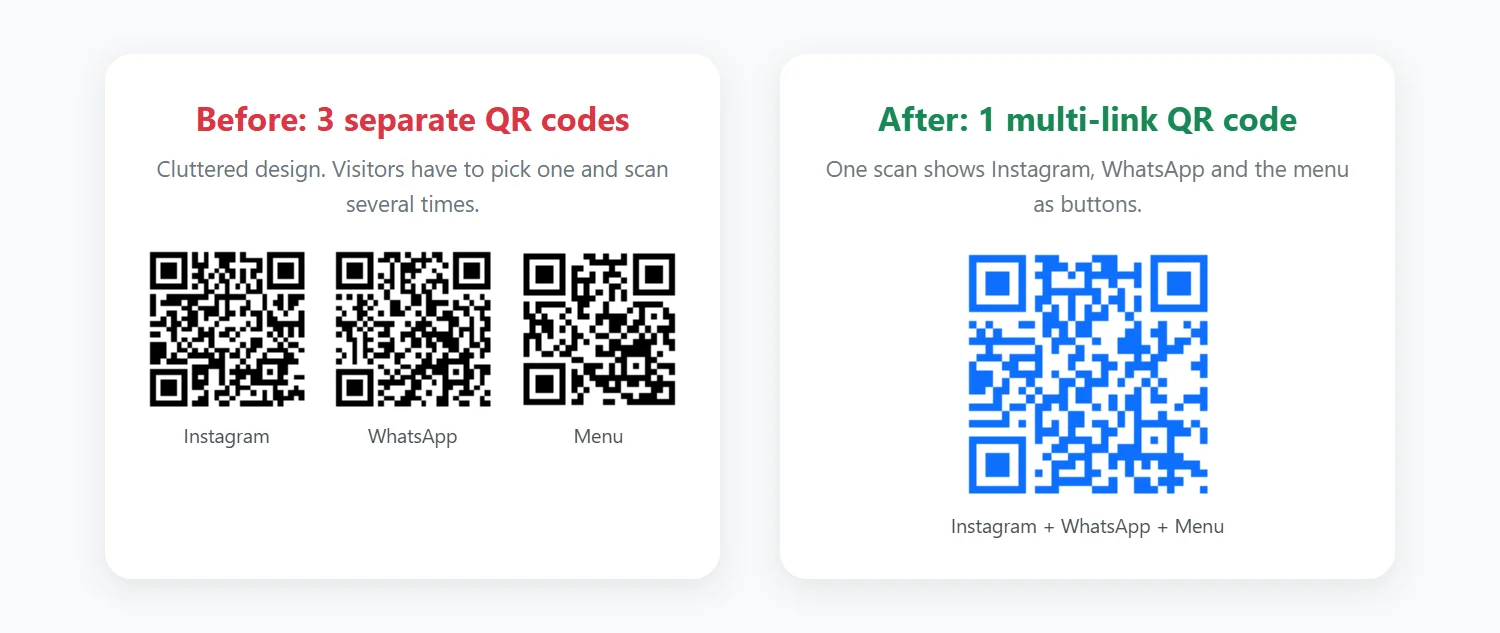
Can one QR code really hold multiple links?
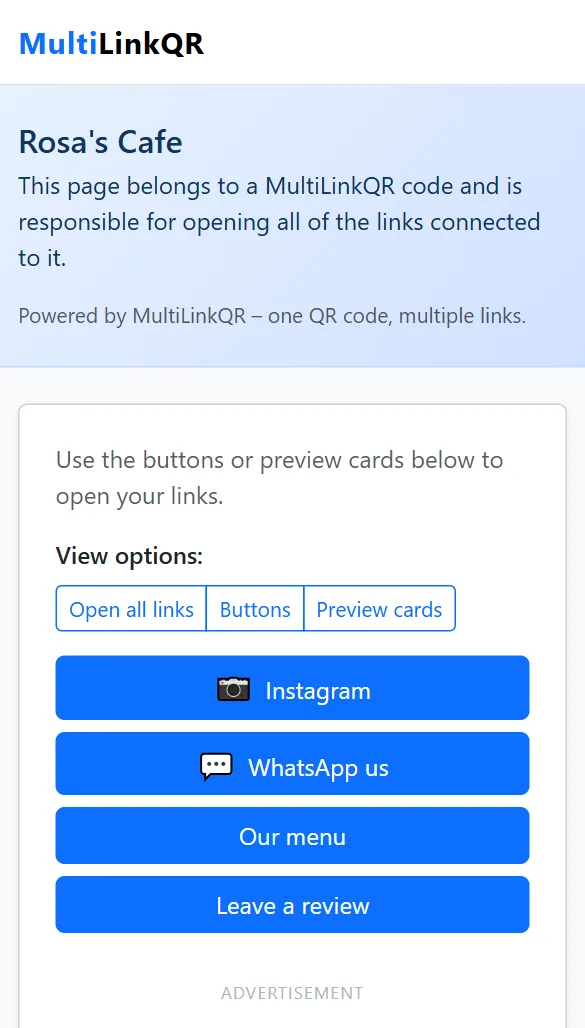
Technically, a QR code stores one piece of text, usually one web address. A multi-link QR code (also called a multi-URL or multi-destination QR code) works around this: the QR code opens a small landing page, and that page shows all of your links as buttons. The person scanning simply taps the one they want.
With MultiLinkQR, the list of links is stored inside the QR code's own web address. That has two practical benefits: there is no account or database to manage, and your QR code does not depend on a subscription to keep working.
What you need before you start
- The links you want to share. Copy each one from your browser's address bar so it starts with
https://. For examplehttps://instagram.com/yournameorhttps://wa.me/15551234567for WhatsApp. - A short label for each link, such as "Instagram", "WhatsApp us" or "Our menu". Labels become the button text people see.
- Optional: your logo as a PNG or JPG file.
Step 1: Choose Multi-Link mode and add a title
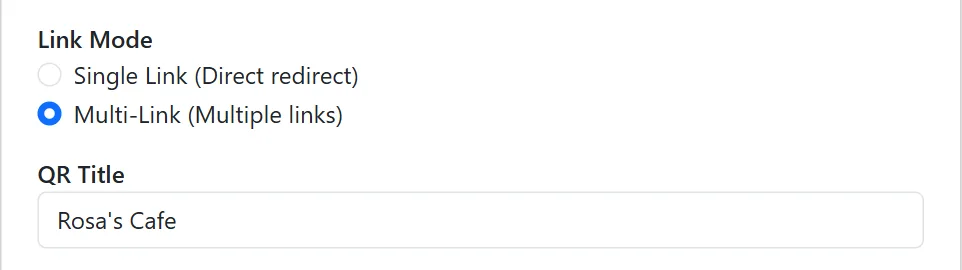
Open the free QR code generator. At the top, select Multi-Link (Multiple links). Then give your QR code a title. The title appears at the top of the page people see after scanning, so use your name or business name, for example "Rosa's Cafe".
Step 2: Add your links and labels
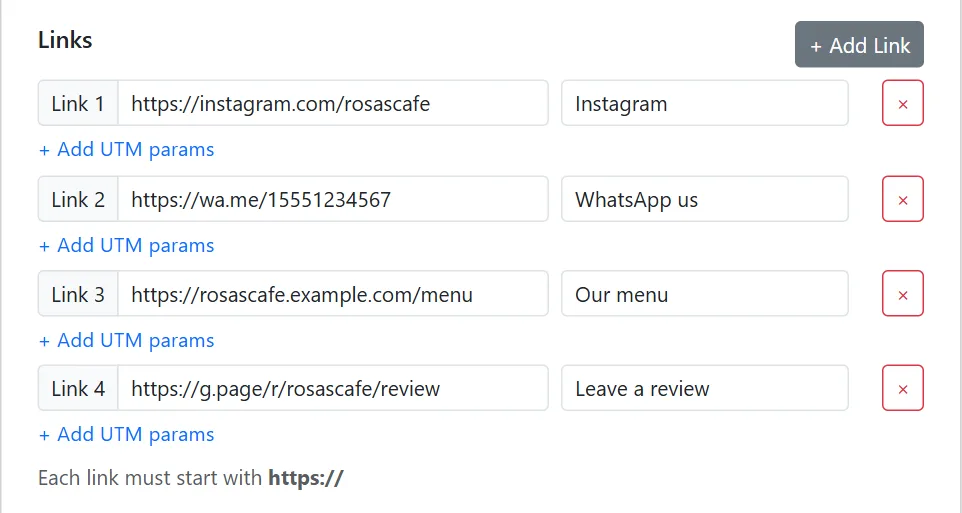
In the Links section, paste your first link and type its label. Click + Add Link for each additional link. You can remove a link with the red ✕ button.
A few tips that make a real difference:
- Put the most important link first. It becomes the top button.
- Use the platform name in the label (Instagram, WhatsApp, YouTube, LinkedIn, TikTok). The landing page then shows the matching icon automatically.
- Every link must start with
https://. Links starting withhttp://are rejected because many phones warn users about insecure pages. - Want to measure traffic? Click + Add UTM params under a link and fill in
utm_source(for exampleflyer) andutm_campaign. Visits from the QR code then show up separately in Google Analytics on your website.
Step 3: Choose how links open, then style your QR code
Under Open Mode you have two choices:
- Show buttons only (recommended): visitors see a clean list of buttons and tap the link they want.
- Auto-open all links: the page tries to open every link in a new tab. Most phone browsers block this as a pop-up after the first link, so it is best for two links at most. Buttons are always shown as a backup.
Next, pick a color and background, and optionally add a border, rounded pixels, an expiry date or your logo.
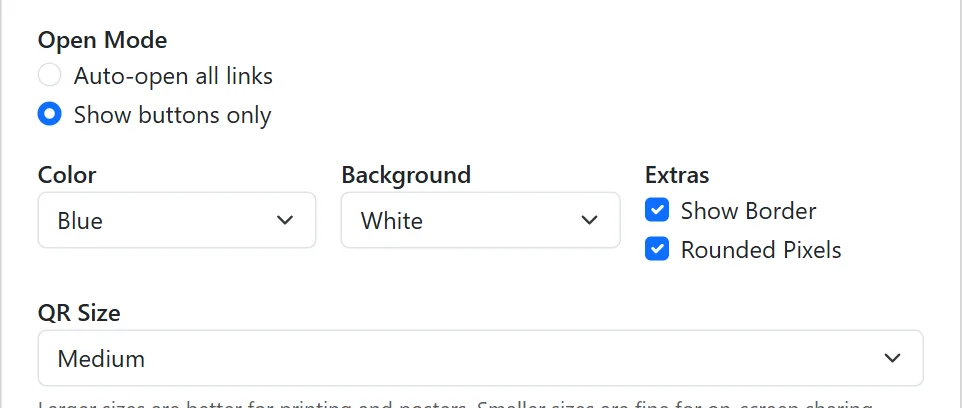
For the size, choose Large (print) if the code will go on paper, a poster or packaging. Choose Medium for sharing on screens.
Step 4: Generate, test and download
Click Generate QR Code. Your code appears in the preview panel with three buttons:
- Download PNG: an image file that includes your logo. Best for most uses.
- Download SVG: a vector file that stays sharp at any size. Ideal for professional printing (the SVG does not include the logo).
- Copy URL: the link behind the QR code, which you can also share in chats, emails or your social bio.
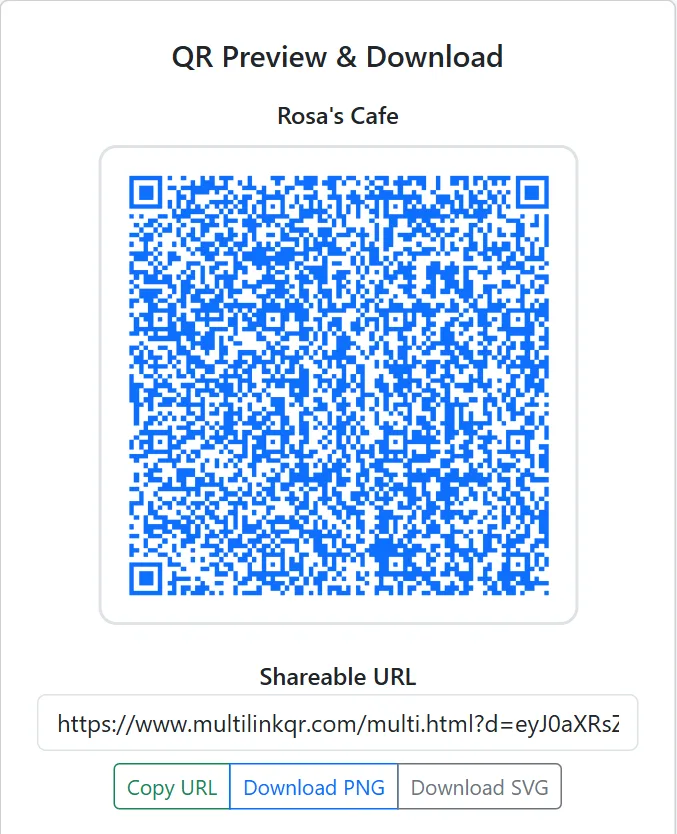
Always scan it with your own phone before printing. Open the camera app, point it at the screen and tap the link that appears. Check that every button opens the right page.
What people see when they scan
After scanning, visitors land on a mobile-friendly page with your title and one button per link. They can also switch to "Preview cards", which shows the web address under each label so people know where a link goes before they tap it.
Try it now: scan this demo QR code
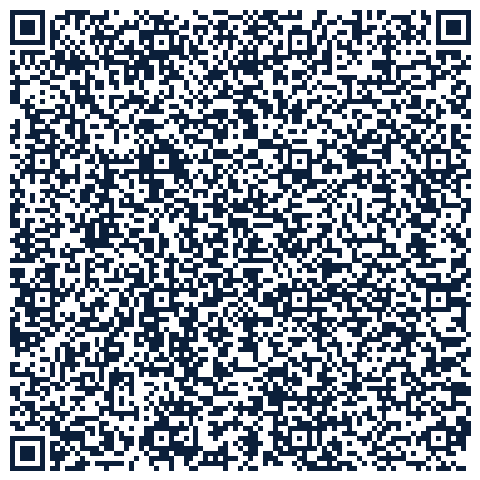
Point your phone camera at the code below. It is a real multi-link QR code made with MultiLinkQR and opens a page with three buttons.
How many links can you put in one QR code?
There is no fixed limit, but there is a practical one. Because the links are stored inside the QR code itself, every extra link makes the pattern denser, with more and smaller squares. A dense code needs to be printed larger to scan reliably. As a rule of thumb:
- 2–5 links: ideal. Scans easily even on business cards when printed at about 2.5 cm (1 inch) or larger.
- 6–8 links: fine for flyers and posters. Print it at 4 cm (1.5 inches) or larger.
- More than 8: possible, but ask yourself whether visitors really need them all. Shorter links (for example your profile address without extra tracking parts) keep the code simpler.
Tips for a QR code that always scans
- Keep strong contrast: a dark code on a light background. Avoid light colors such as yellow on white.
- Leave empty space around the code. Don't place text or images right against its edges.
- Keep the logo small. The generator places it in the center at a safe size; still test it after adding one.
- Add a short call to action next to the code, for example "Scan for our menu, WhatsApp and Instagram".
- Avoid glossy or curved surfaces that reflect light or bend the code.
Common mistakes to avoid
- Printing before testing. A single wrong link means reprinting everything.
- Copying a link from an app's "share" menu without checking it. Some share links include long tracking parts. Open the link in a browser first and copy the clean address.
- Unclear labels like "Link 1". Tell people exactly what each button opens.
- Choosing auto-open for many links. Phones block multiple pop-ups; use "Show buttons only" instead.
Frequently asked questions
Is it really free?
Yes. Creating and downloading multi-link QR codes on MultiLinkQR is free, with no sign-up and no watermark.
Can I change the links after printing?
No. The links are stored inside the QR code, so it is a static QR code. That is also why it keeps working without an account. If your links change, generate a new code and reprint it, so double-check before printing.
Do multi-link QR codes expire?
Only if you set an expiry date. Without one, the code keeps working. With an expiry date, visitors see a short "This QR code has expired" message after that day, which is handy for limited-time offers and events.
Does it work on iPhone and Android?
Yes. Any modern phone camera or QR scanner app can read it, and the landing page works in every mobile browser.
Can I track how many people scan it?
There is no built-in scan counter. You can add UTM parameters to each link (Step 2) and see QR code visits in the analytics of your own website or shop.
Create your multi-link QR code now
Add your links, pick your colors and download your QR code in about two minutes. Free, no sign-up, no watermark.
Generate QR Code Free Read More Guides