WhatsApp QR Code: Let Customers Chat in One Scan
Create a free WhatsApp QR code with pre-filled messages. Let customers chat with your business in one scan. Free dynamic codes with unlimited scan tracking.
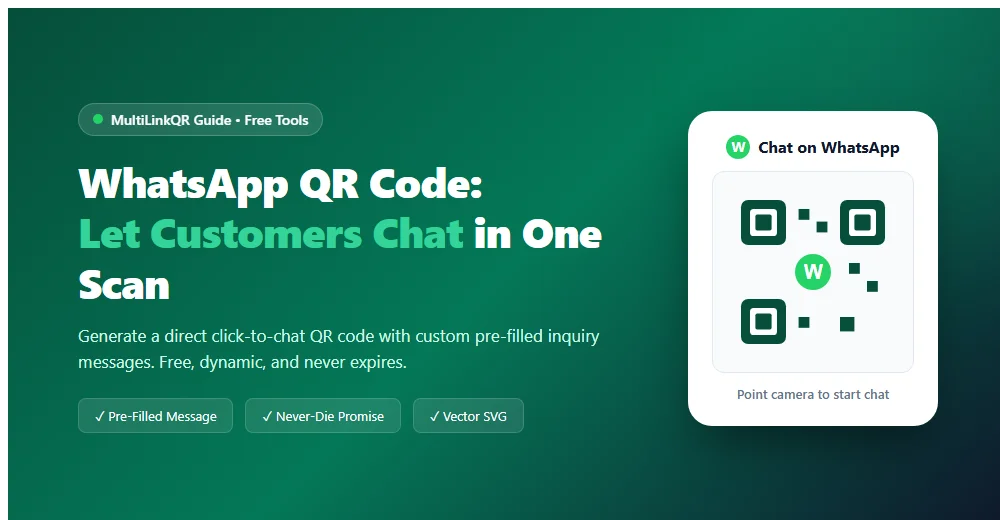
Getting customers to message your business on WhatsApp often feels harder than it should. When you print a standard 10-digit mobile number on a poster, flyer, or product package, the customer has to unlock their phone, open their contacts app, create a new contact, type your number, save it, open WhatsApp, search for the contact, and finally type a message. Most people drop off after step two.
Creating a dedicated whatsapp qr code eliminates every single step of friction. In one second, a customer points their phone camera at your code and immediately lands in an open WhatsApp conversation with your business, with a polite greeting already typed in their message box.
Quick answer: A WhatsApp QR code uses official wa.me deep-linking to launch a direct WhatsApp chat window when scanned by any smartphone camera. By generating your code on MultiLinkQR, you can include pre-filled inquiry messages, embed your company logo, download crisp vector SVG print files, and update your phone number later without reprinting. MultiLinkQR provides 3 dynamic codes completely free forever.
Why use a dedicated WhatsApp QR code for your business?
WhatsApp is the dominant communication channel for over two billion people worldwide. In countries like India, Brazil, Indonesia, and across Europe, customers prefer chatting over WhatsApp rather than filling out website contact forms or waiting on customer care phone queues.
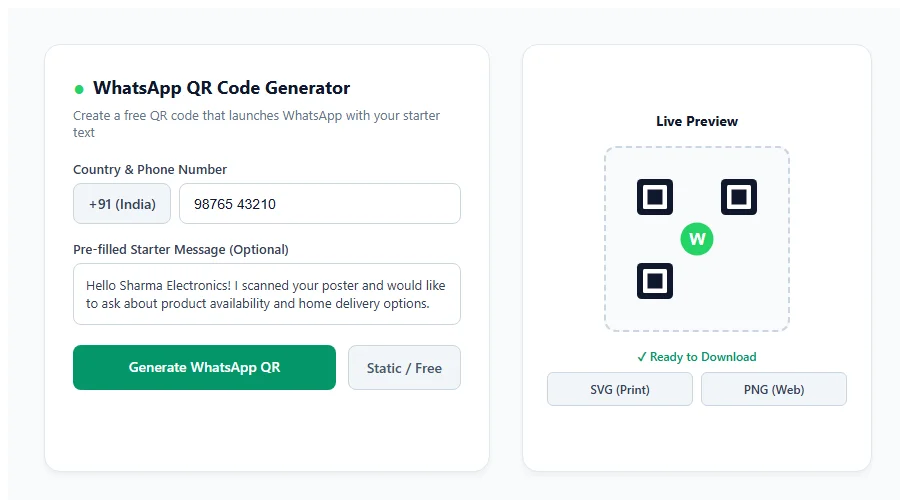
When you deploy a custom WhatsApp QR code on your physical marketing collateral, you unlock five immediate business advantages:
- Zero Phone Number Saving: Customers never have to type digits or clutter their personal phonebook with commercial contact cards.
- Instant Pre-Filled Inquiries: You can configure the code to automatically suggest what the customer wants to ask (such as "Hi! I'd like to book an appointment" or "Please share your wholesale catalog").
- Higher Conversion Rates: Removing 5 steps of manual contact creation increases customer message volume by up to 300%.
- Permanent Dynamic Control: If you change your support helpline number or assign a new staff member to handle customer inquiries, a dynamic code lets you change the phone number in your dashboard without throwing away thousands of printed posters.
- Print-Ready Resolution: Export crisp vector SVG graphics that scale smoothly from tiny visiting cards to 10-foot storefront banners without pixelation.
MultiLinkQR vs WhatsApp Business built-in QR code: What is the difference?
Many small business owners ask: "Doesn't the WhatsApp Business app already have a QR code feature?"
Yes, WhatsApp Business includes a basic QR code in its settings menu. However, that built-in code has major operational limitations for commercial businesses:
| Feature & Capability | WhatsApp App Built-in QR | MultiLinkQR Generator |
|---|---|---|
| Export Formats | Low-res PNG image only | High-res PNG & Vector SVG (print-ready) |
| Custom Colors & Eyes | Standard green/black square | Full brand palette customization |
| Logo Integration | Standard WhatsApp icon | Your own business logo or custom icon |
| Pre-Filled Inquiry Text | Basic single message | Rich contextual messages tailored per campaign |
| Dynamic Number Updates | No (reprint required if number changes) | Yes (change linked phone number anytime) |
| Scan Analytics | Basic scan count | 30-day analytics with device & city metrics |
| Multi-Link Option | Single chat only | Add WhatsApp alongside website, reviews & UPI |
| Cost | Free inside app | Free on MultiLinkQR (3 dynamic codes forever) |
If you are printing commercial counter standees, product labels, or trade show banners, relying on the low-res PNG from WhatsApp often results in blurry scans. Using our dedicated WhatsApp QR code generator ensures flawless print clarity and long-term dynamic control.
How to create a free WhatsApp QR code step-by-step
Generating a professional WhatsApp QR code takes less than two minutes on MultiLinkQR:
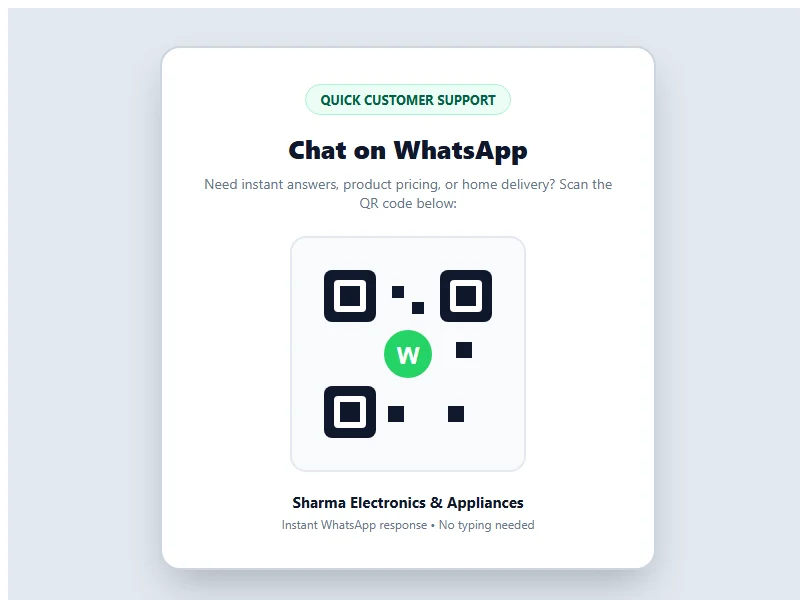
Step 1: Open the WhatsApp QR generator
Navigate to the free WhatsApp QR code generator tool in your browser. You can create a static code instantly without even creating an account, or log in to generate a dynamic code with scan analytics.
Step 2: Enter your phone number with country code
Select your country from the dropdown (such as +91 for India, +1 for US/Canada, or +44 for UK) and enter your active WhatsApp or WhatsApp Business mobile number. Do not add any leading zeros, dashes, or special symbols.
Step 3: Add your pre-filled inquiry text
Craft a clear, welcoming message that prompts the customer's intent. For example:
- Retail Store: "Hello Sharma Electronics! I scanned your shop poster and want to check stock availability."
- Hair Salon & Spa: "Hi Glamour Salon! I would like to book a haircut appointment for this weekend."
- Real Estate Agent: "Hello! I am inquiring about the 3-BHK apartment advertised on your brochure."
- Coaching Class: "Hello Sir, I saw your banner and want details on upcoming batch schedules and fees."
Step 4: Customize styling and branding
Match your QR code to your brand aesthetic. Pick high-contrast colors, select rounded or sharp corner modules, and center your store logo.
Step 5: Download vector SVG or high-res PNG
Download your completed code as a vector SVG file for commercial printing, or PNG for digital flyers. Test scan the code with your smartphone camera before printing volume batches.
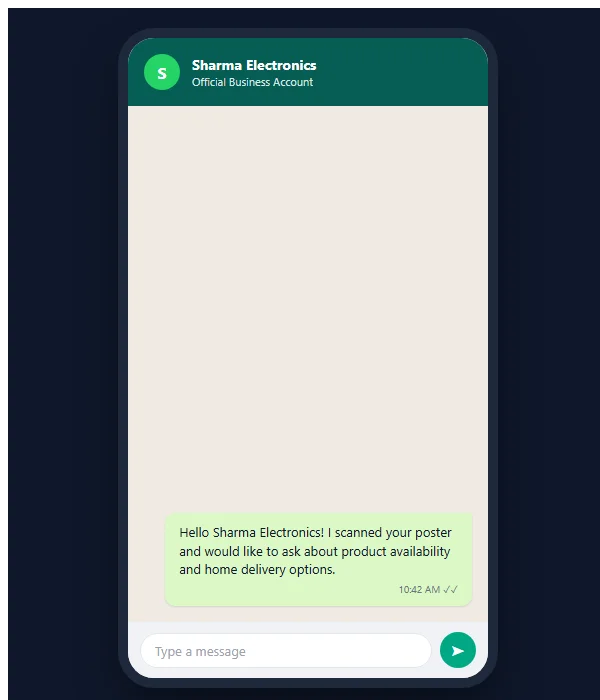
Best real-world placements for WhatsApp QR codes
Placing your QR code where customers naturally experience questions or purchase intent maximizes incoming chat volume:
1. Store Checkout Counters & Acrylic Standees
Place an acrylic L-shape standee right next to your cash register. Add a friendly call to action: "Have questions about home delivery or warranty? Scan to chat with our owner directly on WhatsApp!"
2. Product Packaging & Outer Boxes
Every physical package delivered to a customer's doorstep is a prime communication opportunity. Include a QR code on your product box for instant unboxing help, user instructions, or warranty registration. Learn more in our guide on QR codes for shops.
3. Service Vehicles & Delivery Vans
Vinyl stickers on company delivery vans or service cars turn traffic jams into lead generation channels. Drivers and pedestrians waiting at traffic lights can snap your code and initiate a consultation instantly.
4. Restaurant Tables & Room Service
Instead of making diners search for a waiter to request water, fresh cutlery, or the bill, place a compact table sticker linking directly to the server station. If you run a dining establishment, explore our full guide on QR menus with WhatsApp ordering.
5. Multi-Link Bio Pages
If you want to offer customers more than just WhatsApp—such as your Google Maps location, Instagram profile, and payment links—you can combine them all using our multi-link QR code guide.
Technical rules for reliable WhatsApp QR codes
To ensure every customer scan connects smoothly without errors, keep these three technical rules in mind:
- Follow the Official WhatsApp Click-to-Chat Format: MultiLinkQR formats your link following official Meta WhatsApp API standards using clean
https://wa.me/<number>?text=<encoded_text>URLs. - Maintain Minimum 2 × 2 cm Print Size: For close-up scanning on business cards or stickers, never print smaller than 20 × 20 mm. For wall posters viewed from 1 meter away, use at least 50 × 50 mm.
- Rely on the Never-Die Guarantee: All dynamic QR codes on MultiLinkQR are backed by our permanent Never-Die promise. Even on our Free plan, your dynamic codes never expire and continue routing scans with zero surprise paywalls.
Review our transparent pricing plans to see everything included on the Free plan. Generate your free WhatsApp code today!
Frequently Asked Questions
Create Your Free Multi-Link QR Code Today
No monthly fees, zero forced watermarks, and our Never-Die promise means your QR codes will never break.

Related Guides
Google Review QR Code: Get More Reviews Easily
Create a free Google review QR code. Send customers straight to your 5-star review submission form in one scan. Boost Google Maps local SEO ranking.
QR Menu WhatsApp Ordering: Free, Zero Commission Guide
Create a free QR menu WhatsApp ordering system for your cafe or restaurant. Zero commissions forever, up to 20 items free, and instant kitchen order dispatch.
UPI QR Code for Shop: Free GPay, PhonePe & Paytm QR
Create a free UPI QR code for shop counters. Accept Google Pay, PhonePe, and Paytm payments directly into your bank account with zero platform commission fees.