Designers, photographers, developers, writers and job seekers all face the same problem: your best work lives online, but people meet you in person, at an interview, a portfolio review, a fair or a networking event. A QR code on your resume, business card or printed portfolio takes them straight to your work. With a multi-link code, one scan can show your portfolio, LinkedIn, GitHub and contact details.
What to link from a portfolio QR code
Choose the 3–5 links that best show your work and make it easy to contact you:
- Designers: portfolio website, Behance or Dribbble, LinkedIn, email.
- Photographers: portfolio gallery, Instagram, booking or price page, WhatsApp.
- Developers: GitHub, personal website or live projects, LinkedIn, resume PDF.
- Writers and marketers: writing samples, LinkedIn, a case study PDF, email.
- Job seekers in any field: LinkedIn, resume PDF, references or certificates.
Put your strongest link first. It becomes the top button. Label each link clearly ("Portfolio", "GitHub", "Resume (PDF)") so recruiters know exactly what they are opening.
Where to put it
- Resume or CV: in the header next to your contact details, about 2.5 cm (1 inch) wide. Add a line such as "Scan for my portfolio and LinkedIn".
- Business card: on the back, with your name and role on the front. See our visiting card guide.
- Printed portfolio or leave-behind: on the last page, so people can see more after the meeting.
- Exhibition or fair stand: large on the banner, with your name next to it.
- Presentation slides: on your final slide, so the audience can connect while you take questions.
Tips for a professional result
- Use a clean, dark code on white. Recruiters scan in office lighting, and contrast matters more than style.
- Title it with your name (for example "Alex Chen, UX Designer"). It appears at the top of the page after scanning.
- Check every link on a phone. Many portfolio sites look great on desktop but load slowly or break on mobile.
- Host your resume PDF on Google Drive with "Anyone with the link can view", and test it from a phone that isn't logged in.
- Keep links long-lived. The QR code can't be edited after printing, so link to profiles and pages that won't move. If you update your resume, replace the file in Google Drive ("Manage versions") so the link stays the same.
Create your portfolio QR code
- Open the free QR code generator and choose Multi-Link.
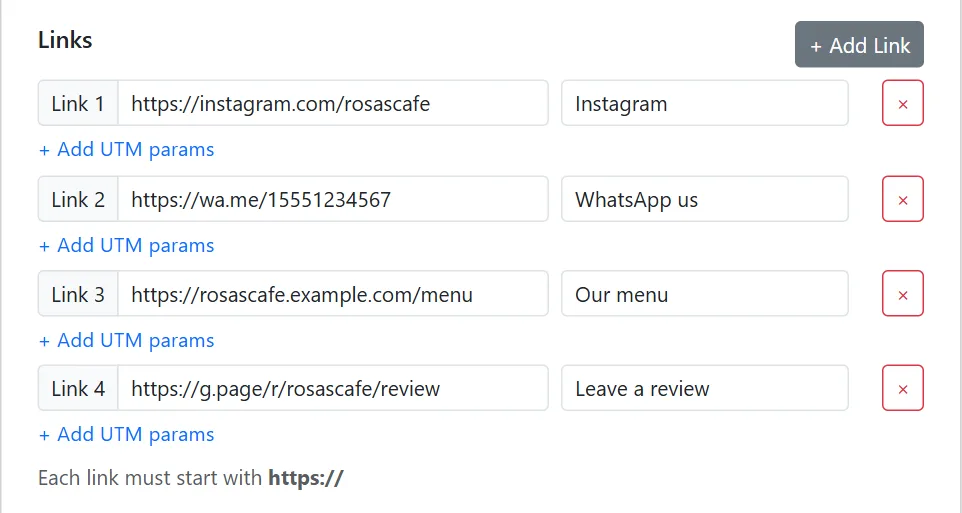
- Enter your name as the title and add your links with labels.
- Choose Show buttons only, a dark color and Large (print) size.
- Generate, scan to test, and download PNG (for documents) or SVG (for professional printing).
Want screenshots of each step? See how to put multiple links in one QR code.
Frequently asked questions
Is a QR code on a resume a good idea?
For roles where your work matters (design, development, photography, marketing), it's a quick way for an interviewer to see real examples. Keep your normal written contact details too. Not everyone will scan, and some applications are read only as digital files, where a clickable link is better.
Can I use the same link online?
Yes. After generating, click Copy URL and add that link to your email signature or online profiles.
Create your portfolio QR code
Portfolio, LinkedIn, GitHub and resume in one scan. Free, no sign-up.
Generate QR Code Free Read More Guides