A QR code menu lets guests open your menu on their own phone in seconds, and you can update prices without reprinting anything. This guide walks restaurants, cafés, bars and food trucks through the whole process: getting your menu online, creating the QR code, and printing it so it scans every time. It also covers how to add ordering, reviews and your social media to the same code.
Step 1: Put your menu online
A QR code needs a web address to open, so your menu has to be online first. Choose whichever option fits you:
- A page on your website. Best for search and easiest to read on phones. If you have a website, this is the ideal option.
- A PDF file. Upload your menu PDF to Google Drive or Dropbox, set sharing to "Anyone with the link can view" and copy the link. Keep the file small so it opens quickly on mobile data.
- An online ordering or delivery platform that already shows your menu.
Tip: if you use a PDF, you can replace the file in Google Drive later ("Manage versions" → upload new version) and the link stays the same. That way your printed QR code keeps working even when prices change.
Step 2: Decide between single-link and multi-link
- Single-link QR code: the scan opens your menu directly. Perfect for table tents where the only job is showing the menu.
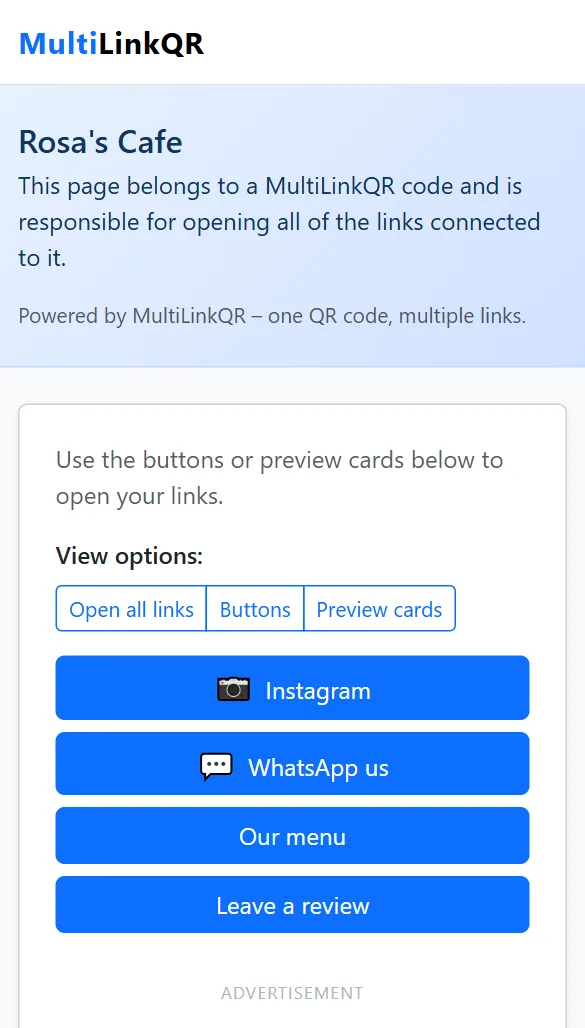
- Multi-link QR code: the scan opens a small page with buttons such as "Menu", "Order online", "Book a table", "Leave a review" and "Instagram". Ideal for the window, the counter, receipts and flyers, where guests may want more than the menu.
Step 3: Create your menu QR code
- Open the free QR code generator.
- Choose Single Link and paste your menu link, or choose Multi-Link and add each link with a label ("Our menu", "Order online", "Reviews").
- Enter your restaurant name as the title.
- Pick a color. Stick to dark colors on a white background for reliable scanning.
- Choose Large (print) as the size and add your logo if you like.
- Click Generate QR Code, scan it with your phone, then download PNG (for most printing) or SVG (for professional print shops).
Want screenshots of each step? See how to put multiple links in one QR code.
More than the menu: what else restaurants can link
The same QR code can do much more than show your menu. Useful links for restaurants and cafés include:
- Online ordering or takeaway: guests can order again from home.
- Reservations or waitlist: link to your booking page so people can reserve their next visit.
- Reviews: a direct link to your Google review page is one of the most valuable links you can add. Happy guests leave reviews when it takes one tap.
- Feedback form: a short Google Form for private feedback.
- WhatsApp: for takeaway orders, catering requests or group bookings.
- Instagram or TikTok: turn guests into followers who see your daily specials.
- Allergen or nutrition information: a separate page or PDF keeps the main menu clean.
Where to place menu QR codes
- Table tents or stickers on each table. Place them where guests can scan without leaning over.
- The front window or door, so passers-by can check your menu before coming in.
- The counter and receipts, with a multi-link code that includes reviews and ordering.
- Takeaway bags and delivery boxes, with a link for reordering.
Size and printing tips
- Table tents: print the code at least 3–4 cm (about 1.5 inches) wide.
- Windows and posters: larger. People should be able to scan from a step or two away.
- Matte finish works better than glossy lamination, which reflects restaurant lights.
- Add a clear line like "Scan for our menu" or "Scan for menu, ordering and reviews".
- Test in your real lighting before printing a full batch. Dim restaurant lighting is harder than daylight.
Keep a printed menu available
Not every guest wants to use their phone, and some have no mobile data or a low battery. A QR menu works best alongside a few printed menus for guests who ask. Many restaurants mention this on the table tent: "Prefer a paper menu? Just ask."
Common mistakes
- A huge PDF that takes ages to load on mobile. Compress images before uploading.
- Sharing settings left private on Google Drive, so guests see "Request access". Test from a phone that isn't logged into your account.
- Printing before testing every link.
- Changing the menu link (for example a new PDF with a new address) after printing. Replace the file instead so the link stays the same.
Frequently asked questions
Can I update my menu without a new QR code?
Yes, as long as the menu's web address stays the same. Update the page on your website, or replace the PDF file in Google Drive using "Manage versions". The QR code itself can't be edited, so if the address changes, create a new code.
Is it free?
Yes. Creating and downloading menu QR codes on MultiLinkQR is free, with no account and no watermark.
Single or multi-link for tables?
For tables, a single-link code straight to the menu is fastest. For windows, counters and receipts, a multi-link code with menu, ordering and reviews gets more value from each scan.
Create your menu QR code
Link your menu, ordering, reviews and Instagram in one QR code. Free and ready to print.
Generate QR Code Free Read More Guides